Month: December 2017

  • CATS User Parameters

    We’ve been covering CATS (cross-application time sheets) functionality over the last several blog posts. SAP has provided a way to make using some of that functionality easier with User Parameters.

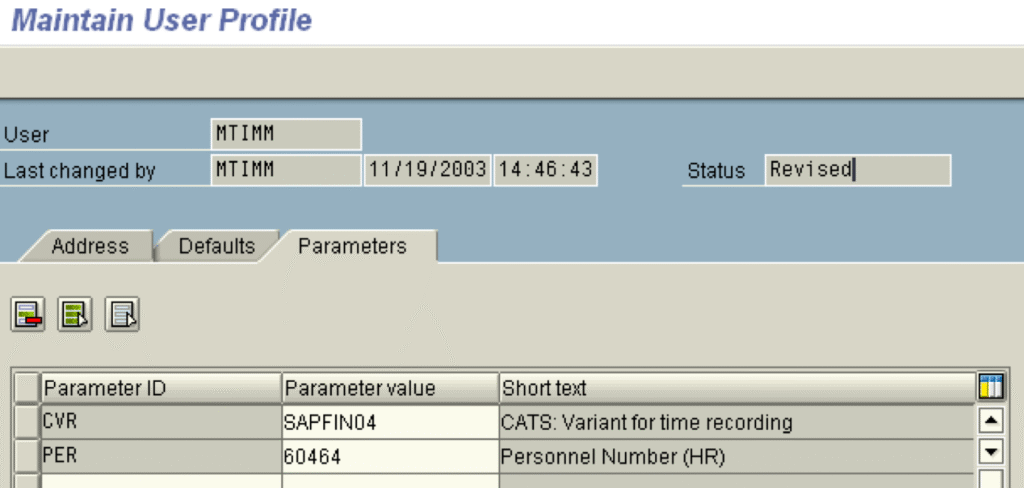
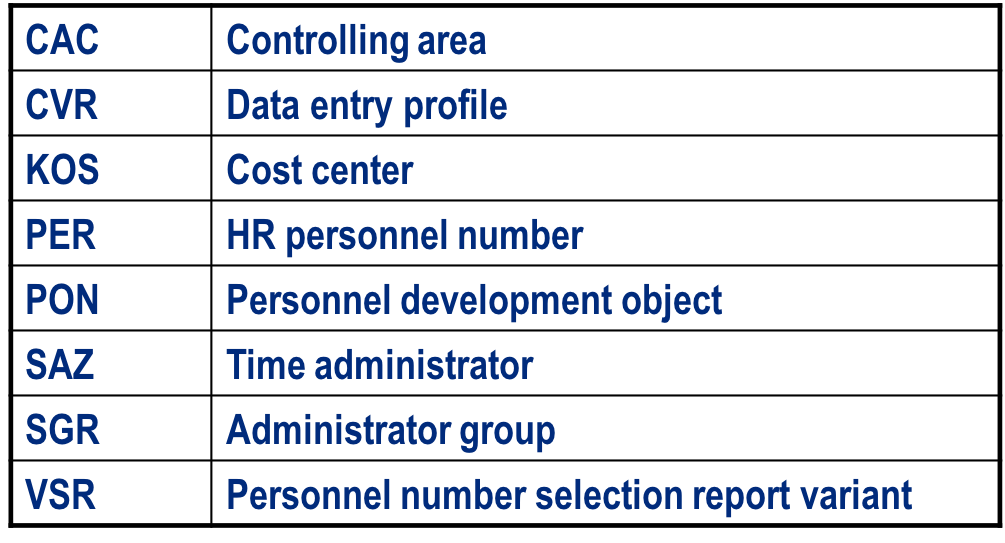
    Many of you already know about user parameters and how they are useful to default in such things as company code or cost center. Employees entering data through should also use the parameters to make the process more efficient. Parameter PER should be set for each employee with their own personnel number.

    A key parameter is CVR which sets the user default data entry profile. If you set the CATS profile attributes to not allow the profile to be chosen, this is necessary. Even if you allow the profile to be selected, the best thing you can do is set the parameter so that every week the employee uses the same profile giving them the same look and feel. If nothing else, set the parameter so that the employee doesn’t have to remember. Definitely a good way of reducing the number of data entry errors and errors during transfer.

    You can easily set your own user parameters with tcode SU3 or the SAP menu path System > User profile > Own data > Parameters.

    Our next post will cover using User Exits in CATS.

  • CATS Profiles

    Continuing with our blog series about CATS, we’ll next cover CATS Profiles. At the most basic level, CATS Profiles determine the data entry fields available for entry or display:

    • How the timesheet will appear
    • Allow individual employee or multiple employee entry
    • Fields available for entry and to be displayed
    • The number of days available to be entered

    Profiles have 8 sections that may be configured to produce the desired data entry process.

    1. General settings
    2. Time settings
    3. Person selection
    4. Cost accounting variant
    5. Default values
    6. Worklist
    7. Data entry checks
    8. Workflow

    Several options exist in the General settings section that may be of interest. You should only select the options that are relevant to the user.

    • We can display such things as a total line by employee or the target hours for a given day.
      • Target hours are drawn from Infotype 0007 Time Management work schedule rule.
      • If an employee doesn’t work the target hours, then maybe an absences needs to be entered for the remaining hours.
    • You can allow hours to be entered or start and end times.
    • Future dated entries may be transferred with current or prior dated entries or held until the future dated entry is in the current period.
    • Settings for the approval process are made.
      • If approval required is selected, you may want to also select the no change after approval. Then an employee can’t make changes. You can use a different profile for a manager or time administrator to allow changes after approval.
      • If no change after approval is not selected, data that goes through the approval process may be changed at a later time and then transferred to HR.
    • Selecting the Immediate transfer to HR will transfer the data to HR when the data is Saved

    In Time settings, we can configure that we want weekly time entry with one period or multiple periods.

    • If you allow future data entry, you may want the current and a future period to appear.
      • This way a week of vacation may be entered ahead of time
    • You can also define what day is the beginning of the work week.
      • Some of you employees may be Sunday and some Monday.
      • You would create to profiles identically, but with a different start day

    Finally, in the third section, you may set the employee groupings to automatically default the employees that should have time entered. This is very useful if you have time administrators who enter the time for the same group of employees period after period

    After creating the profile, the fields displayed in the Time Sheet when maintaining or displaying are defined. Selecting the fields and setting attributes makes user entry easier and reduces error.

    • Attributes set for a field influence the target module.
      • Should a field appear or not.
      • Should a field be required.
      • Depending on the module receiving CATS data, fields may or may not be required. If you send data to Project Systems you need to have the network field.
    • Displaying fields is done by configuring modifiable fields and influencing fields.
    • Modifiable fields are set as the base for all data entry profiles.
    • Influencing fields are profile-specific field attributes. Keep number of fields displayed on the screen to the absolute minimum.

    Overall, keep in mind the more fields on a screen, the more chance for user input error.
    Keep the fields to the minimal number possible.

    Below we have the fields that may be configured to appear, not appear, and be required.
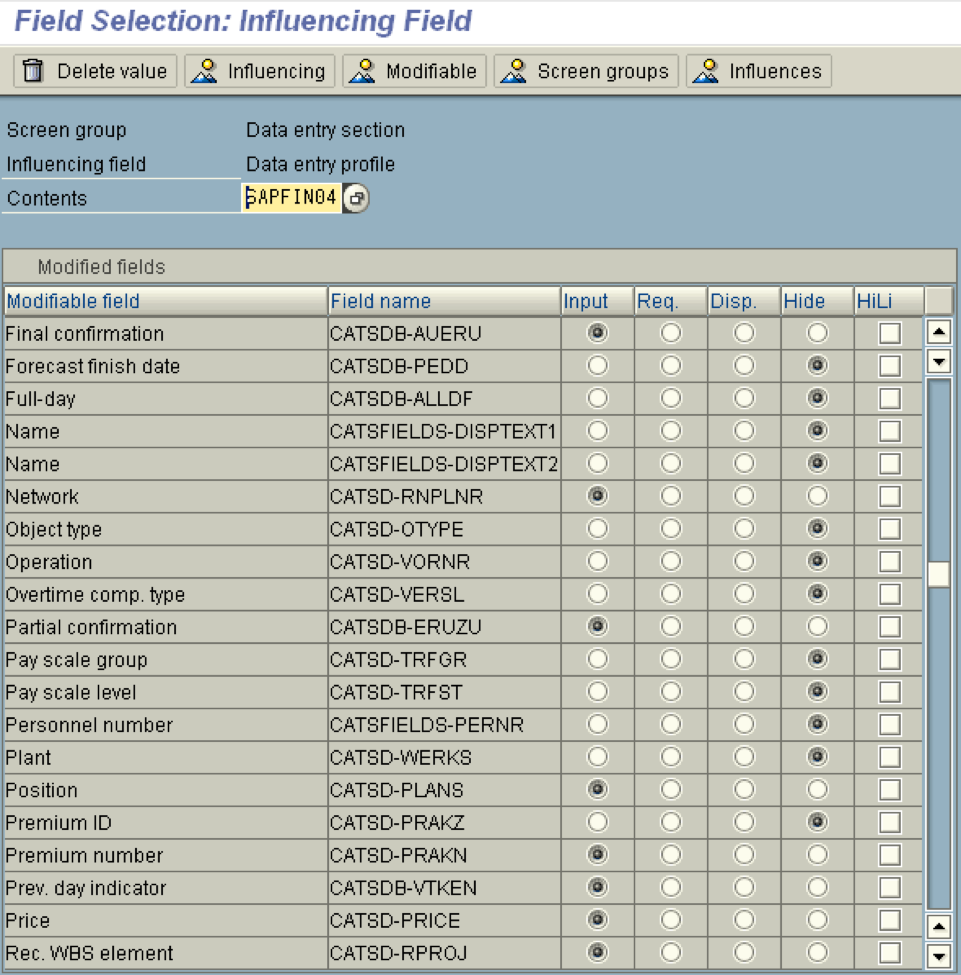
    You’ll always start off with the Modifiable tab because the configuration set here goes across all profiles. If you set a modifiable field attribute to Hide, no profile will be able to see that field, regardless of what you set under influencing.

    Under the influencing tab, you set the fields that you want to see in your specific profile
    The screen print shows the influencing field attributes.

    The next subject we’ll cover is CATS User Parameters. Very useful to make the process more efficient.

  • Transferring CATS Data

    We have previously covered Understanding the basics of CATS (cross-application time sheets) showing how SAP provides a very robust method to capture time data and have that data passed to other SAP modules. Then we continued to discuss how CO, PM, PS, and HR may use that capture time data.
    Using CATS Data: Updating CO (controlling)
    Using CATS Data: Updating PM (plant maintenance)
    Using CATS Data: Updating PS (project systems)
    Using CATS Data: Updating HR (human resources)

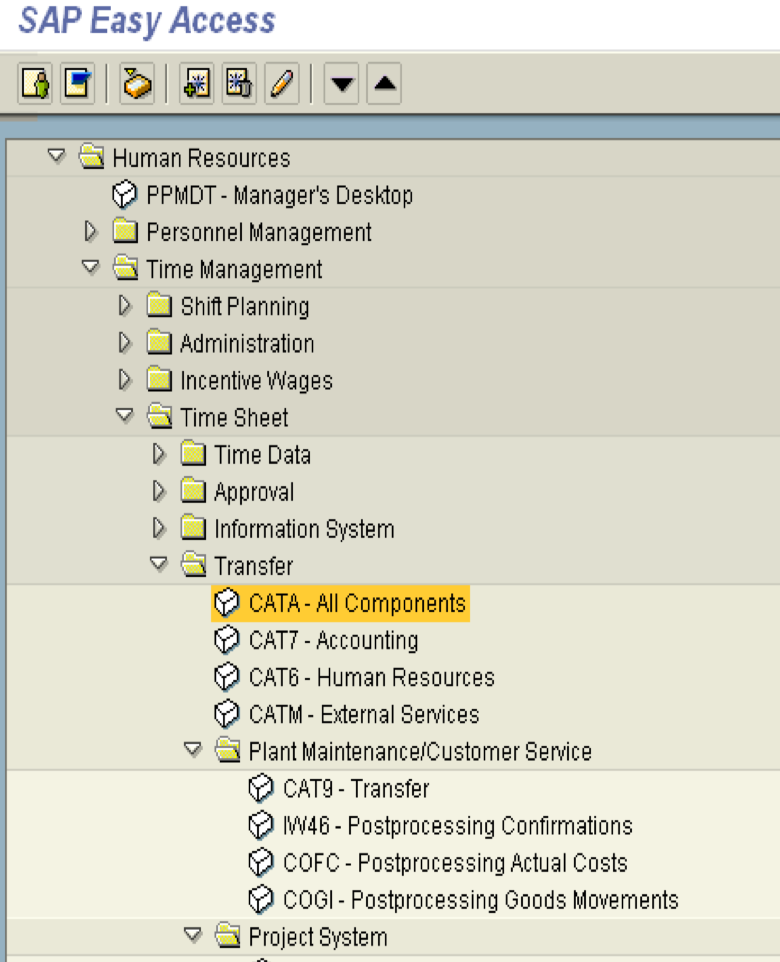
    The next step is to transfer the capture time data in CATS to the other modules. As discussed in an earlier post, you have the option of transferring data to all other modules at the same time or on an individual module bases. This allows a great deal of flexibility. HR has one added option the other modules do not if you do not require a time approval process. HR data may be transferred immediately on save from CATS and this is configured in the CATS profile. All other modules require a program be run to transfer the data.

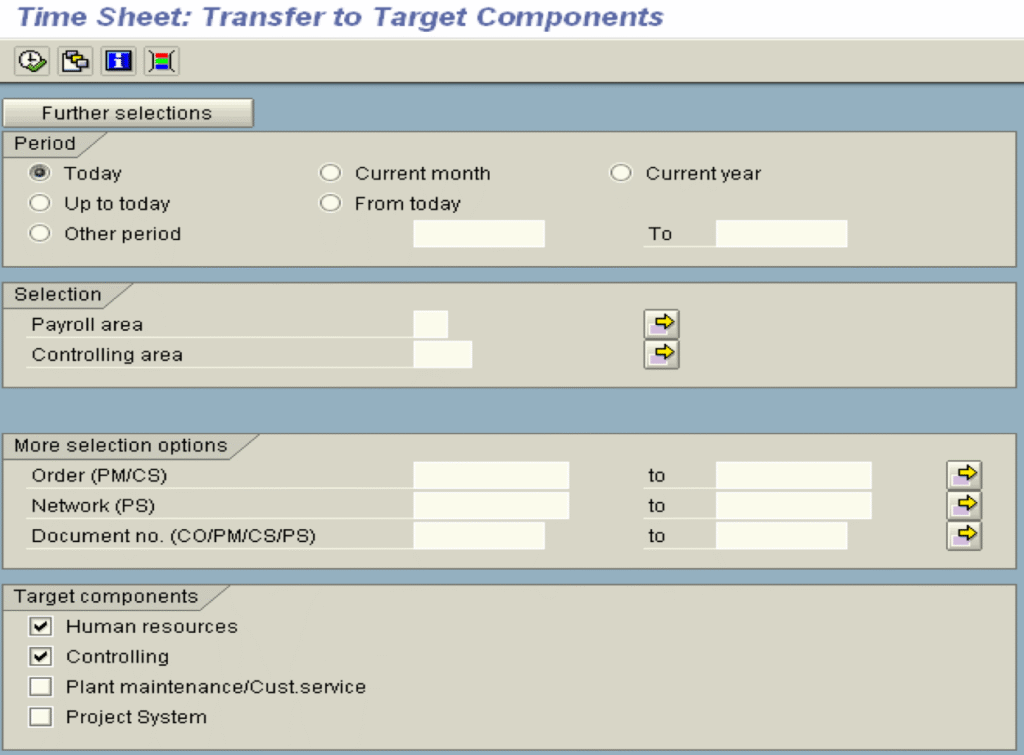
    Below is a demonstration of the manual method of transferring data to HR and CO at the same time. As previously noted, the data could have been passed to HR immediately upon save and then we would only need to transfer the data to CO in this step. Whether you want to transfer all components at the same time or individually requires a study of your exact requirements of each module.

    It is typical for HR data to be passed immediately if time administrators are entering the time. However, if employees are entering their own time, a batch session is scheduled to transfer approved data periodically.

    After we enter the transaction, the parameter screen allows flexibility in exactly what data needs to be transfer. In our example, we run the transfer on a daily basis and our target components are HR and CO. Under the selection section, we could

    • have identified a subgroup of employees. An example would be if you have weekly and bi-weekly paid employees. You may need the transfer done weekly for the weekly paid employees and could use their payroll area for selection criteria
    • have specified a network that needs to be update twice daily and the remaining networks only once a day

    This screen where you want to limit the period for transfers to PM and PS as we discussed in Using CATS Data: Updating PM (plant maintenance) and Using CATS Data: Updating PS (project systems). The more focused the selection, the quicker the transfer process will finish.

    CATS is great tool for hourly and salaried employees when tasks are performed in multiple projects or cost centers. If activity rates have been configured, a different rate may be charged to a cost center based on the work performed. SAP default is to post hours and dollars to the employee home cost center, but CATS provides a mechanism for the spreading of the hours and dollars to cost centers where the employee actually worked.

    Make sure to discuss with accounting how the posting process works on the HR side. Accounting may expect something totally different than the employee home cost center receiving the entire posting. Also, if the HR group is leading the CATS implementation, sometimes accounting doesn’t realize how the data will post to CO.

    In our next blog post, we’ll cover CATS Profiles.

  • Using CATS Data: Updating HR (human resources)

    In our previous posts, we discussed Understanding the basics of CATS (cross-application time sheets) and the robustness that it provides to capture employee time data. We then covered three modules that care about costing: Using CATS Data: Updating CO (controlling), Using CATS Data: Updating PM (plant maintenance), and Using CATS Data: Updating PS (project systems).

    When we enter time in CATS there are several interactions with the HR module. CATS captures actual hours attended or absent, validates absences with absence quotas during entry, and allows several overrides. Time evaluation and Payroll will then use this data to calculate regular time, overtime, double time, paid or unpaid absences, differences in rates of pay, work tax overrides, and a variety of other items.

    While time entry is occurring, absence and attendance quotas are being validated. An example is vacation.

    • If an employee has enough, no problem, the data passes.
    • If the employee does not have enough a warning or error may be generated


    CATS may update the following HR Infotypes:

    Absences (Infotypes 2001)

    • Actual hours absent
    • Validates absences with absence quotas

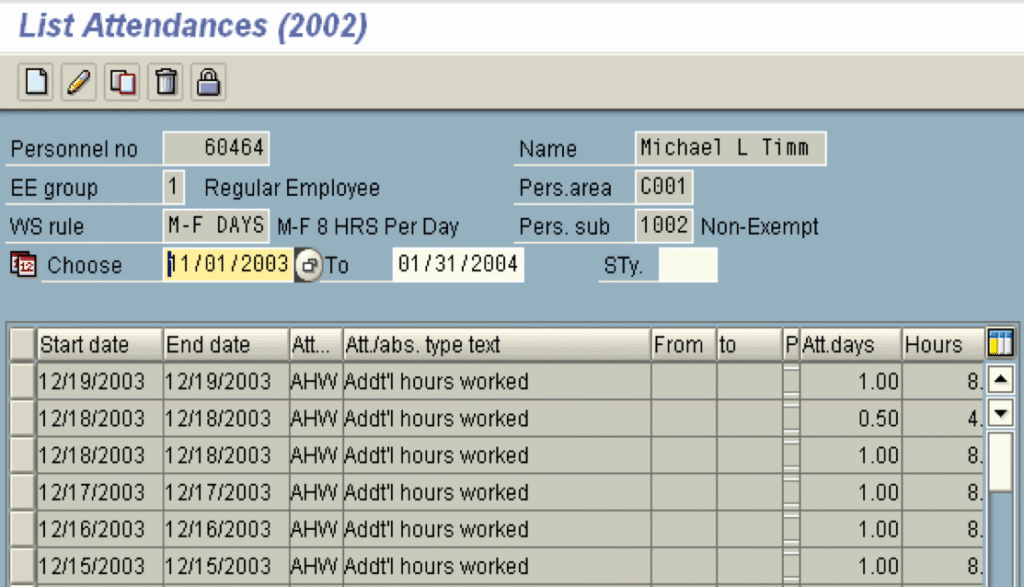
    Attendances (Infotypes 2002)

    • Actual hours or start and end times attended
    • Validates attendances with attendance quotas
    • Below is an example where CATS attendances have been passed to HR

    Substitutions (Infotype 2003)

    • Position option may be used to assign payment for the work according to the specifications of a different position
    • Used dhen an employee assumes a different position for a short period of time
    • For example, a line worker takes on the role of foreman for a shift, infotype 2003 would be populated so additional pay will be processed during payroll

    Employee Remuneration Infotype 2010)

    • One-time earnings/deductions

    Work Tax Area (Infotype 0208)

    • Work tax area may be entered that is different than the default area in Infotype 0208
    • For example, Nebraska was entered in CATS to override the employee regular work tax area of Iowa

    Now that the data has been captured with all the options we need for CO, PM, PS, and HR, we’ll discuss the method to transfer the data from CATS Data to those modules.